
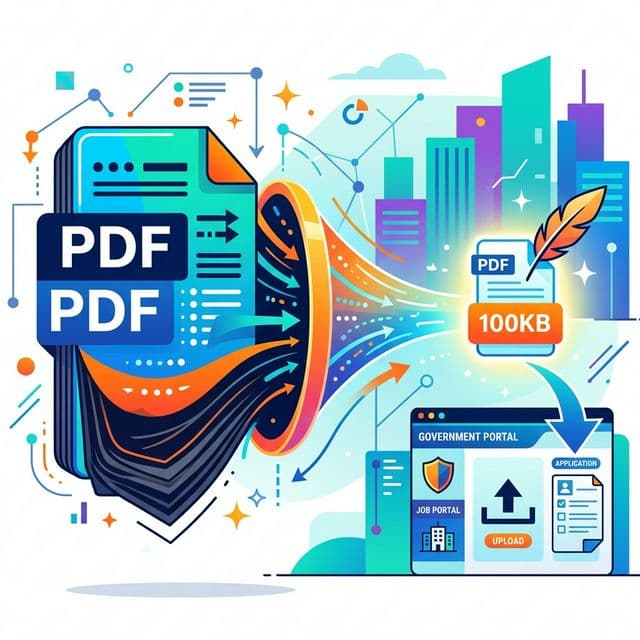
Every year, millions of Indian job aspirants face the same frustrating error:
❌ "File size exceeds the maximum allowed limit of 100KB. Please upload a smaller file."
Whether you're applying for SSC CGL, UPSC Civil Services, IBPS PO, Railway RRB, or any state-level government exam, you've probably seen this message. Government job portals in India have strict file size limits — usually 50KB to 200KB for documents like photographs, signatures, and certificates.
The problem? Your scanned documents are usually 2MB to 10MB — far too large. And if you compress them too aggressively, the text becomes unreadable and the portal rejects them anyway for poor quality.
This guide will show you exactly how to compress any PDF to 100KB (or less) without losing quality — using free online tools that work on any device.
Why Do Government Portals Have Such Strict Size Limits?
Indian government job portals like SSC, UPSC, IBPS, and state PSC websites handle millions of applications during each recruitment cycle. To keep their servers running smoothly, they enforce strict file size limits:
| Portal | Document | Max Size | Format |
|---|---|---|---|
| SSC (CGL/CHSL) | Photo | 20KB – 50KB | JPG |
| SSC (CGL/CHSL) | Signature | 10KB – 20KB | JPG |
| UPSC | Certificates (PDF) | 100KB – 300KB | |
| IBPS (PO/Clerk) | Documents | 50KB – 200KB | PDF/JPG |
| Railway (RRB) | All Documents | 50KB – 100KB | PDF/JPG |
| State PSC | Certificates | 100KB – 500KB |
If your file is even 1KB over the limit, the portal will reject it. No exceptions.
Why Are Your PDFs So Large in the First Place?
Before we fix the problem, let's understand why your scanned PDFs are too big:
- High Scanner DPI: Most scanners default to 300 DPI or 600 DPI. Government portals only need 100–150 DPI for readable documents.
- Color Scanning: Scanning certificates in full color produces files 3–5x larger than grayscale scans.
- Embedded Fonts & Metadata: PDF generators often embed entire font families and revision metadata, adding unnecessary weight.
- Multiple Pages: A 5-page certificate scanned at high resolution can easily be 8–10MB.
Step-by-Step: How to Compress PDF to 100KB Online (Free)
Follow these exact steps to get your PDF under 100KB without losing readability:
Method 1: Direct PDF Compression (Recommended)
- Go to the Free PDF Compressor Tool — No signup, no login required.
- Upload your PDF file — Drag and drop or click to select. The tool supports files up to 50MB.
- Wait for automatic compression — The tool analyzes your PDF and applies intelligent compression: it re-samples images to web-optimized resolution, strips unnecessary metadata, and optimizes the internal PDF structure.
- Check the result — You'll see the original size vs. compressed size. Most documents shrink by 50–80%.
- Download your compressed PDF — If it's under 100KB, you're done! Upload it to the government portal directly.
Method 2: Convert → Compress → Rebuild (For Stubborn Files)
If direct compression doesn't get you under 100KB, try this advanced strategy:
- Convert PDF to JPG images using our PDF to JPG Converter.
- Compress each image using our Image Compressor — target 30–50KB per image.
- Rebuild the PDF from the compressed images using our JPG to PDF Converter.
- Final check — Your rebuilt PDF will typically be 60–100KB with perfectly readable text.
💡 Pro Tip for Government Job Aspirants
Before compressing, check if the portal accepts JPG images instead of PDF. If yes, simply use our Image Compressor to resize your scanned photo/signature to the exact size limit. This is faster and gives you more precise control over the file size.
Quick Compression Guide for Specific Exams
📝 SSC CGL / CHSL / MTS
- Photo: Compress to 20–50KB (JPG)
- Signature: Compress to 10–20KB (JPG)
- Use Image Compressor
🏛️ UPSC Civil Services
- Certificates: Compress to 100–300KB (PDF)
- Photo: Compress to 40KB (JPG)
- Use PDF Compressor
🏦 IBPS PO / Clerk / RRB
- Documents: Compress to 50–200KB (PDF)
- Photo with name: 20–50KB (JPG)
- Use both PDF + Image tools
🚂 Railway RRB (NTPC/Group D)
- All documents: Compress to 50–100KB
- Strict limits, no exceptions
- Use Method 2 for large scans
Common Mistakes to Avoid
- ❌ Don't use MS Paint to resize: It destroys image quality. Use a proper compression tool that optimizes without visible quality loss.
- ❌ Don't screenshot your PDF: This creates a low-resolution image with compression artifacts. Always use proper PDF compression.
- ❌ Don't compress multiple times: Each round of lossy compression degrades quality further. Compress once with the right settings.
- ❌ Don't ignore the format: If the portal says JPG, don't upload PDF (and vice versa). Always match the required format.
- ❌ Don't use random websites: Some compression sites add watermarks, require signups, or store your personal documents. Use trusted tools only.
Tips to Get Perfect Results Every Time
- ✓ Scan in Grayscale: Unless color is required, scanning in grayscale produces files 3–5x smaller.
- ✓ Use 150 DPI: This is the sweet spot — readable text, small file size. Don't scan at 300+ DPI for form uploads.
- ✓ Crop unnecessary whitespace: Remove borders and margins before compressing. Less pixels = smaller file.
- ✓ Compress one document at a time: Don't merge 10 certificates into one PDF and then try to compress it to 100KB. Compress each separately.
- ✓ Always verify readability: After compression, open the PDF and zoom in. If you can read all text clearly, it's good to upload.
Frequently Asked Questions
Q: Will compressing my PDF make the text unreadable?
No, if you use a quality compressor. Our PDF Compressor uses intelligent algorithms that reduce file size by removing metadata and optimizing images — without touching the text clarity. The text remains sharp and readable.
Q: Can I compress a 5MB PDF to 100KB?
Yes, in most cases. If direct compression doesn't achieve this, use Method 2 (Convert → Compress → Rebuild) described above. This works reliably even for very large scanned documents.
Q: Is it safe to upload government documents to online tools?
On our platform, absolutely. We use encrypted HTTPS connections, process files temporarily in memory, and automatically delete all uploaded files. No data is stored, and no login is required.
Q: What if the portal still rejects my file after compression?
Double-check: (1) Is the file format correct (PDF vs JPG)? (2) Is the file size under the limit shown on the portal? (3) Does the portal have dimension requirements (e.g., 200x230 pixels for photos)? If the issue is pixel dimensions, use our Image Compressor which lets you resize to exact dimensions.
Q: Can I use these tools on my phone?
Yes! All our tools work on any device — Android, iPhone, tablet, or desktop computer. No app installation needed. Just open the tool in your browser, upload, compress, and download.
Last-Minute Application Checklist
Before you hit "Submit" on any government job portal, verify:
- ☐ Photo is in the correct format (usually JPG) and under the size limit
- ☐ Signature is in the correct format and under the size limit
- ☐ All certificates/documents are in PDF format (unless specified otherwise)
- ☐ Each file is individually under the specified size limit
- ☐ Text is clearly readable when you zoom in on the compressed file
- ☐ File names don't contain special characters (use simple names like "photo.jpg")
Compress Your PDF to 100KB Now — Free!
No signup. No watermark. No software installation. Works on phone and computer.
All the best for your government exam applications! 🇮🇳 Explore more tools at EpicMartWorld Tools