
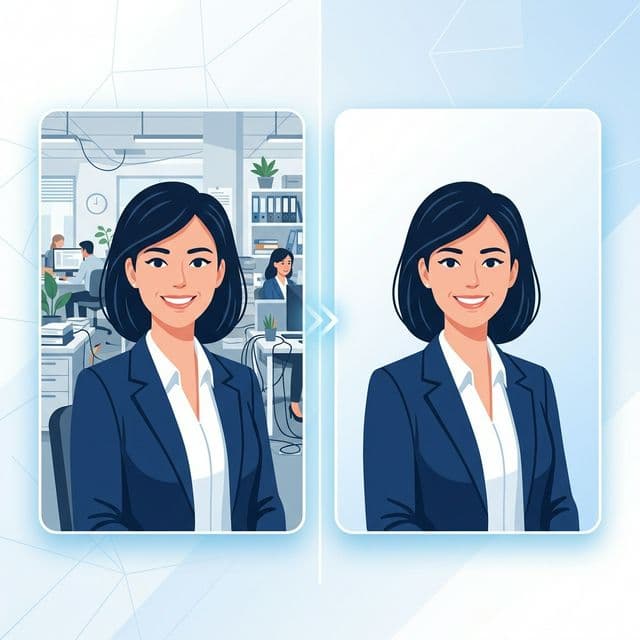
Your LinkedIn profile photo is the first thing recruiters, clients, and colleagues see. And studies show that profiles with professional headshots get 14x more views and 36x more messages than those without.
But here's the problem: most people take their "professional" photos at home, in a café, or at their desk — with cluttered, distracting backgrounds. A bookshelf, a messy kitchen, your roommate walking by — none of that screams "hire me."
The good news? You don't need Photoshop. You don't need a professional photographer. And you definitely don't need to pay $50+ for a headshot editing service. In this guide, I'll show you 5 completely free ways to remove the background from your headshot and get a polished, LinkedIn-ready profile photo in under 2 minutes.
📊 Why Your LinkedIn Photo Matters (The Data)
- Profiles with photos get 21x more views than those without
- Professional headshots increase connection acceptance by 40%
- Recruiters spend 19% of their time looking at your profile picture
- A clean background conveys professionalism and attention to detail
Method 1: EpicMartWorld Background Remover (Fastest & Free)
Our Free Background Remover uses AI to instantly remove backgrounds from any photo — including professional headshots.
How to use it:
- Go to Background Remover — no signup needed.
- Upload your headshot photo — supports JPG, PNG, WebP up to 10MB.
- AI removes the background instantly — the entire process takes 2–5 seconds.
- Download your clean photo — transparent PNG ready for LinkedIn.
✅ Best for: Quick, one-click removal with no learning curve. Works perfectly for headshots with clear subject separation. No watermarks, no limits.
Method 2: Canva Background Remover (Free Tier Available)
Canva's background remover is part of their design platform. While the BG Remover feature itself requires Canva Pro, you can use Canva's free templates to create a professional LinkedIn banner and profile photo combo.
Pros & Cons:
✅ Pros
- Great UI and easy to use
- LinkedIn templates included
- Can add new backgrounds
❌ Cons
- BG Remover requires Pro ($13/month)
- Free tier is limited
- Requires account creation
Method 3: Remove.bg (Free with Limitations)
Remove.bg was one of the first AI-powered background removers. It's fast and accurate, but the free version has significant limitations.
Pros & Cons:
✅ Pros
- Very accurate AI detection
- Works well with hair/fur edges
- API available for developers
❌ Cons
- Free: low-resolution output only
- HD downloads cost credits ($1.99+)
- Limited to 1 free preview per image
Method 4: PhotoRoom (Mobile App)
PhotoRoom is a mobile-first background remover that works great on Android and iOS. Perfect if you want to edit your headshot directly from your phone's camera roll.
Pros & Cons:
✅ Pros
- Excellent mobile experience
- Built-in professional backgrounds
- Batch processing available
❌ Cons
- Free tier adds watermark
- Pro plan: $9.99/month
- Requires app installation
Method 5: GIMP (Free Photoshop Alternative)
GIMP is a free, open-source image editor that can do everything Photoshop can — including background removal. But it requires manual work and a learning curve.
Pros & Cons:
✅ Pros
- 100% free, no limitations
- Full creative control
- No internet required
❌ Cons
- Steep learning curve
- Manual selection tools
- Takes 10–20 minutes per photo
Comparison: Which Method Should You Use?
| Tool | Price | Quality | Speed | Best For |
|---|---|---|---|---|
| EpicMartWorld | Free | ⭐⭐⭐⭐⭐ | 2 seconds | Quick, no-signup removal |
| Canva | $13/mo (Pro) | ⭐⭐⭐⭐ | 5 seconds | Design + removal combo |
| Remove.bg | Free (low-res) | ⭐⭐⭐⭐⭐ | 3 seconds | Complex hair edges |
| PhotoRoom | Free (watermark) | ⭐⭐⭐⭐ | 3 seconds | Mobile users |
| GIMP | Free | ⭐⭐⭐⭐⭐ | 15+ minutes | Full manual control |
What Background Should You Use for LinkedIn?
Once you've removed the background, you have a choice: keep it transparent, add a solid color, or use a subtle gradient. Here's what works best:
Clean White
Classic, professional. Works for corporate roles, finance, consulting.
✅ Most PopularSoft Blue Gradient
Modern, approachable. Great for tech, startups, marketing.
💡 TrendingLight Grey
Subtle, sophisticated. Good for creative roles, design, photography.
🎨 Creative⚠️ Backgrounds to Avoid
- Bright/neon colors — They look unprofessional and distracting
- Complex patterns — Compete with your face for attention
- Dark backgrounds — Can make your photo look gloomy in LinkedIn's white feed
- Obvious AI-generated scenes — Office backgrounds that look fake undermine trust
LinkedIn Headshot Best Practices (2026 Edition)
- ✓ Face takes up 60–70% of the frame: Crop from mid-chest to above the head. Don't use a full-body photo.
- ✓ Make eye contact with the camera: Looking directly at the lens creates connection and trust.
- ✓ Use natural lighting: Stand near a window. Avoid harsh overhead fluorescent lights.
- ✓ Dress one level up: Wear what you'd wear to an important meeting in your industry.
- ✓ Smile naturally: A genuine smile makes you approachable. Avoid forced or "passport photo" expressions.
- ✓ Update yearly: Using a 5-year-old photo is misleading. Update your headshot at least once a year.
- ✓ Optimal size: LinkedIn recommends 400x400 pixels minimum, but 800x800 or 1000x1000 looks best on retina displays.
Step-by-Step: Perfect LinkedIn Headshot in 2 Minutes
- Take a photo — Use your phone's front camera near a window. Portrait mode helps blur the background slightly.
- Remove the background — Go to our Background Remover. Upload, wait 2 seconds, download.
- Add a clean background — Use our Image Editor to add a white or light blue background behind your transparent image.
- Crop to square — LinkedIn profile photos are displayed as circles, but uploaded as squares. Crop to a perfect square with your face centered.
- Compress if needed — If the file is too large, use our Image Compressor to optimize it without quality loss.
- Upload to LinkedIn — Go to your LinkedIn profile → Click your photo → Upload the new headshot. Done! ✅
Frequently Asked Questions
Q: Can I use a selfie as my LinkedIn photo?
Yes, as long as it's well-lit, properly cropped, and has a professional background. With AI background removal, even a bathroom selfie can look professional (though we recommend a better location for expression and lighting).
Q: What file format should I use for LinkedIn?
LinkedIn accepts JPG, PNG, and GIF. PNG gives you the best quality for headshots. JPG works too and produces smaller file sizes. LinkedIn's max file size is 8MB.
Q: Should I look at the camera or look away?
Look directly at the camera. Eye contact builds trust and connection. Side-profile or "looking into the distance" shots may work for creative portfolios, but for LinkedIn, direct eye contact performs 40% better.
Q: Is it unprofessional to use a filtered photo?
Light adjustments (brightness, contrast, warmth) are fine. Heavy filters (Instagram-style, beauty mode, face reshaping) are not. Your photo should look like you when you show up to a meeting.
Q: How often should I update my LinkedIn photo?
At minimum, once a year. If you've significantly changed your appearance (new hairstyle, glasses, weight change), update it immediately. An outdated photo erodes trust when you meet people in person.
Remove Your Headshot Background Now — It's Free!
No signup. No watermark. No download limits. AI-powered, works in 2 seconds.
Your next career opportunity might be one profile photo away. Make it count! 📸 Explore more free tools at EpicMartWorld Tools